Adding the Academic Engagement Activity (AEA) Automation
Federal Financial Aid regulations require the confirmation of attendance for students to receive federal aid. To meet these regulations, LSU Financial Aid & Scholarships must be able to verify participation in all college courses by the census date, which is the last day for students to add courses or change sections. As an instructor, you are responsible for recording this participation in an academic activity that students must complete by the census date by either:
- Using the Academic Engagement Activity (AEA) automation process on a Moodle activity to automate the reporting to WDS. (see instructions below), or
- Manually entering each student’s participation information into the Workday Verify Participation task (see the Office of Academic Affairs instructions).
Use these links to jump to what you need in this article:
The AEA tag can be used by all Workday-generated courses on Moodle.lsu.edu. For the automated process to report a student’s attendance, the Moodle activity must have:
- the Academic Engagement Activity (AEA) tag selected, and
- either
- a grade recorded no later than 48 hours after the census date,
- an activity completion marked complete by 11:59 PM of the census date (See GROK 20272: Activity Completion for more information about setting activity completion conditions), or
- both a grade and a completed activity completion.
Notes:
- The AEA tag should only be added to the census date activity and not to any other activities included in the course or offered later in the term.
- The AEA activity should have the census date as the assigned due date in the activity settings.
- The Attendance activity should not be used for the AEA Automation.
- Manually added grade items cannot be set up for the AEA Automation.
Examples of Academic Engagement Activities
The following are just some examples of what can be used; this is not an exhaustive list.
- Moodle Quiz covering academic content (i.e., not related to course policies or syllabus information) that is auto-graded.
- Moodle Quiz that has open-ended questions with the completion conditions set to minimum attempts completed.
- Moodle Assignment with the completion conditions set to require submission.
- Moodle Discussion Forum with the completion conditions set to require a discussion post or a reply post. Discussion prompts should focus on academic content covered in the course by the census date (i.e., not student introduction forums or other icebreakers).
- An LTI External Tool assignment that is auto-graded and will have the grades synced back to the Moodle gradebook within 48 hours.
- Moodle Quiz that is an auto-graded knowledge pre-check of foundational terms for the course.
Note: It is recommended that you use graded activities to promote student participation in the AEA activity. If you want to avoid adding a graded item, you can use an activity weight of zero (0) in the gradebook.
This will guide faculty in selecting the Academic Engagement Activity (AEA) tag in a Moodle activity.
- Log in to Moodle and select your teaching course.
Note: It is also recommended to update all Blueprint courses. Once a tag has been added it will import into future courses.
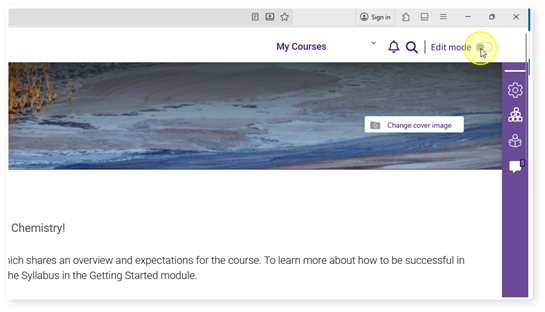
- In the top-right corner, toggle on the Edit mode.
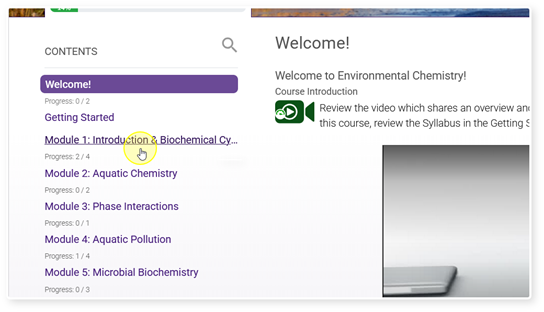
- Click on the section (or module) where the AEA activity is located.
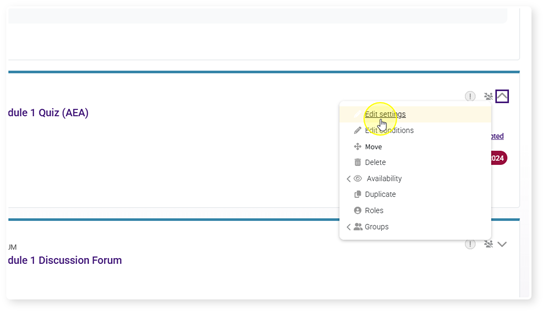
- Locate the AEA activity, and on the right of the activity card, select Edit settings from the dropdown menu.
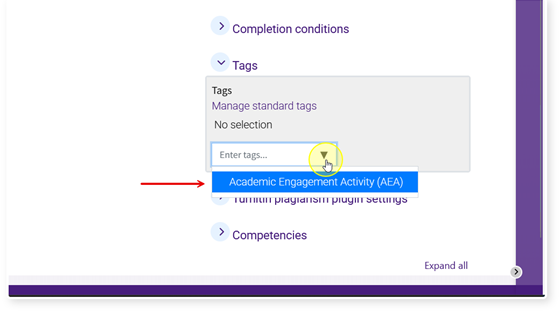
- Locate the Tags setting and click on the section to expand it.
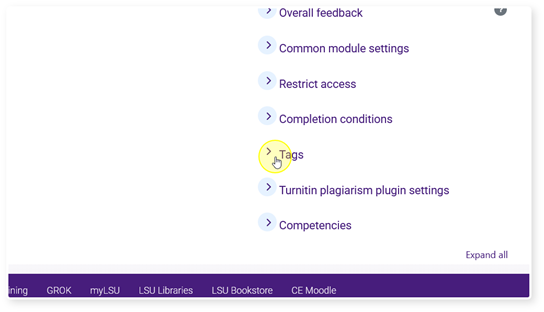
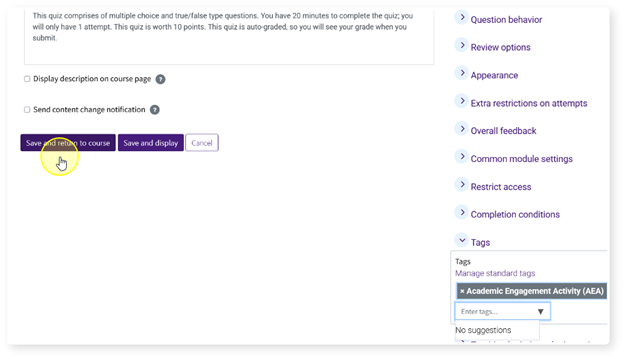
- Use the drop-down menu and select the Academic Engagement Activity (AEA) tag to add it to the activity.
- Click Save and return to course.
20694
2/19/2026 10:53:24 AM