The Cross-enroll tool allows primary course instructors to combine course sections from different but overlapping terms into a new Moodle teaching course. This self-service tool works entirely within LSU Moodle and is intended for LSU A&M web-based courses and LSU Online courses that are taught during the same calendar period. During the cross-enrollment process, the original Moodle course shells are deleted if they do not contain custom content, grades, or students. Automated Academic Engagement Activity (AEA) reporting and posting grades will submit correctly to each course (and section) without additional steps in cross-enrolled courses.
This tool does not replace the separate process used to cross-enroll students into the Continuing Education Moodle site. That process continues to use the method documented in GROK 20544 Moodle: Cross-enrollment (external).
Important: Cross-enrollment cannot be combined with Cross-list & split. If a course has been cross-listed or split, you will be prompted to undo that process before using the cross-enroll tool.
NOTE: It is highly recommended that you cross-enroll your courses before importing materials or making any changes in the courses. When the new course is created, any content will not carry over into the new course. Once your new course is created, you can then import or add any content.
Jump to the following topics:
Not What You Are Looking For?
If you would like to incorporate lecture and lab sections of a course within a term, see Moodle: Crosslist for Lab Sections (GROK #20688).
If you would like to incorporate undergraduate and graduate courses within a term, see Moodle: Crosslist for Undergrad and Graduate Courses (GROK #20691).
If you would like to combine a course into CE Moodle, see Moodle Cross-enrollment (external) (GROK #20544).
If you would like to combine courses with another instructor, see Moodle: Team Teach Request (GROK #20174).
If you would like to undo a cross-enrolled course, jump down to Undo Cross-Enrollment.
The Benefits of Cross-Enrollment
Use cross-enrollment when teaching the same course online in overlapping terms and want one Moodle course for all students. This can simplify and improve the teaching experience. An instructor will not have to switch between multiple courses while remembering what has been completed in each course. This process also helps departments avoid cancelling courses for low enrollment. Thus, cross-enrolling provides a full class for the instructor and helps retain course offerings for students. Cross-enrollment also ensures that all students experience the course in the same way. Many instructors and departments have found cross-enrollment helpful, but it is not mandatory and can vary term to term.
Requirements and Eligibility
Only courses and sections that meet all of the following conditions will appear as options in the Cross-enroll tool:
- You are listed in Workday as the Primary Course Instructor for each section.
- The section controls a grade in Workday.
- The delivery mode in Workday is "100% Web-based" or "Online."
- The terms have the same calendar period (identical start date and end date).
- The term is current or starts within 60 days.
Because no LSU Online courses span 15 weeks, a full 15-week LSU A&M course cannot be cross-enrolled with an accelerated LSU Online course.
Troubleshooting: If you expect to see the cross-enroll tool but do not, first check the course section in Workday. Confirm that the section controls a grade, that you are listed as the Primary Course Instructor, and that the delivery mode is set to "Web-based" or "Online." Then verify that the campus terms you hope to combine have the same start and end dates and that the start date is within 60 days.
Once these items are corrected in Workday, the course sections should appear in the Cross-enroll tool after Moodle receives the updated data (usually within 2 hours).
Initiating Cross-Enrollment
- Navigate to the home page of Moodle and open the blocks drawer in the sidebar.
- Click on Cross-enroll in the Workday Preferences block. Note that this block cannot be accessed from a course page.
-
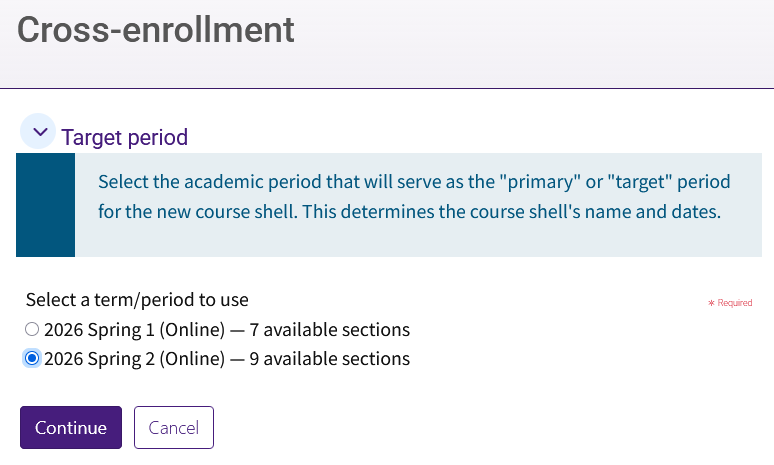
Select a term/period to use and then click Continue. This list will only show current and near-future terms.
- Select all sections that should be cross-enrolled into a single new course. This often will be one section from LSU A&M and one section from LSU Online. However, you can also combine undergraduate and graduate sections across these terms.
Leave any sections that you do not want to include in the new course. Those sections will remain in their original Moodle course shell and will be available for future cross-enrollments.
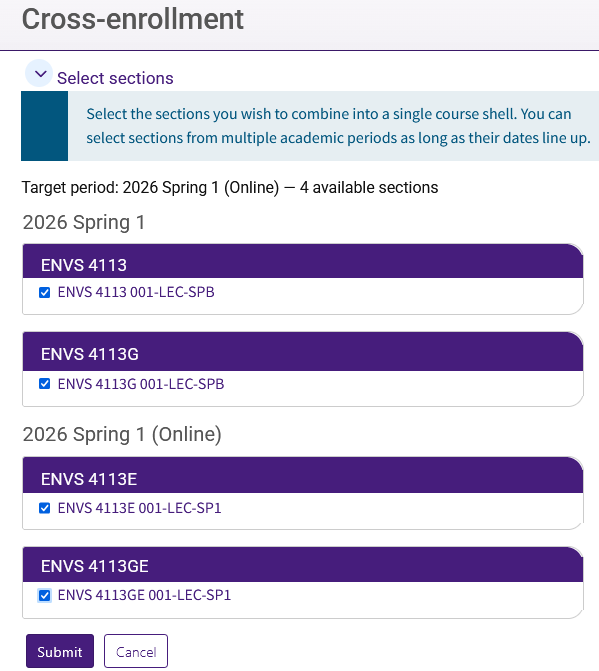
- Click Submit to create the new Moodle shell courses.
NOTE: One new Moodle course will be created that contains all selected sections. All students from those sections are enrolled immediately in the new course, and the instructor or instructors are also enrolled. A confirmation screen will appear with a link to the new course so that you can open it right away.
What Happens to the Original Courses
The tool will evaluate each original Moodle course shell involved in cross-enrollment during the process. If an original course does not contain custom content, grades, or students beyond those just moved, that original course shell is deleted. This is the typical outcome when shells are empty when the process begins.
If a course does contain existing content, grades, or students from another section at the time of processing, the cross-enrolled students are unenrolled from that original course shell and moved to the new one, while the instructor remains enrolled in the original course. In this case, the original shell is not deleted and will remain available to the instructor.
A best practice is to use a separate blueprint course to prepare content and leave the original, term-based shells empty. When those courses are empty, cross-enrollment can safely delete them, which reduces clutter on instructors’ My Courses pages and limits unused courses in the Moodle database.
How to Undo Cross-Enrollment
- Navigate to the home page of Moodle and open the blocks drawer in the sidebar.
- Click on Cross-enroll (or on Cross-list & Split as both tools share the undo tool) in the Workday Preferences block. Note that this block cannot be accessed from a course page.
- Below "Current/Near-Future Periods," you will see your existing cross-enrolled, cross-listed, and split courses. Click View Sections.

- Double check the selected course sections, as this process will abandon the newly created course. Then click the Undo cross-listing, splitting & cross-enrollment button.
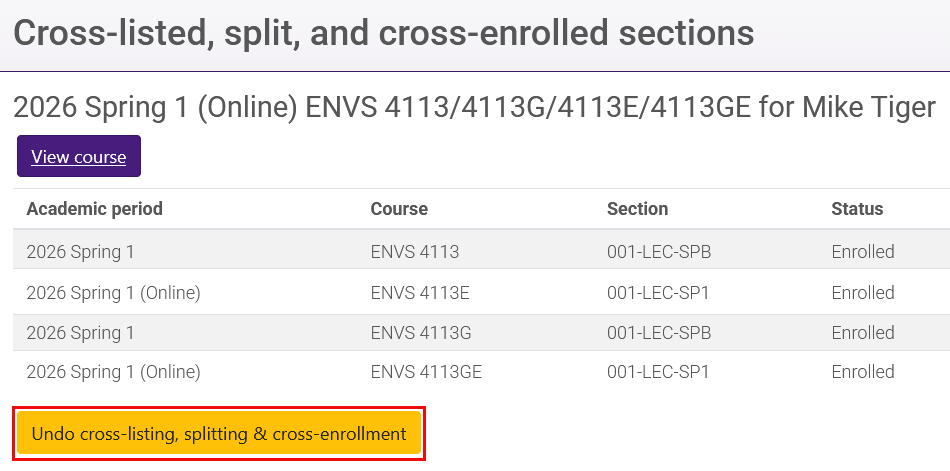
What Undo does:
- If the original course shell was deleted because it was empty, undoing the process does not restore that shell. Instead, a new original course shell is created and students are re-enrolled.
- If the original course shell still exists, students are restored to that original course.
After undoing, review rosters and course visibility to confirm everything is correct.
Reminders and Best Practices
Interactions with Cross-list & Split
Sections that have already been cross-listed or split cannot also be cross-enrolled. If you have sections that you want to cross-enroll but they have already been cross-listed or split, you will see a message prompting you to undo the cross-listing or split if you would like to cross-enroll that section.
Multi-Section Courses
The Cross-enroll tool lists each section you are assigned to teach separately, even if they are combined in a course with other sections. If you teach multiple sections and only some should be cross-enrolled, select only those sections inside the tool. Any sections you leave unselected will stay in their original Moodle shells.
Do not split a multi-section course first. If you attempt to cross-enroll a course that was split, the tool will prompt you to undo the split in order to proceed.
Multiple Cross-enroll Pairs for the Same Instructor
Cross-enrollment creates one new course per run. If you have several course pairs to combine, such as ELRC 7401 with ELRC 7401E and ELRC 7432 with ELRC 7432E, run cross-enrollment separately for each pair. For example, first cross-enroll ELRC 7401 with ELRC 7401E and complete the process, then cross-enroll ELRC 7432 with ELRC 7432E.
If you select all four sections in one run, a single course containing all four sections will be created, which usually is not the desired result. Always review your selections and the resulting course.
Timing Recommendations
Cross-enrollment is available for current terms and for terms starting within 60 days. It is recommended to complete cross-enrollment before the week prior to term start so that you have time to prepare the new course and make it visible to students.
Groups in the New Course
Existing section-based groups from the original courses are copied into the new course. Group names remain based on their original section naming from Workday Student. Cross-enrollment no longer adds a campus prefix, such as “LSU,” to group names.
Verifying Enrollment
After cross-enrollment, open the new course created by cross-enrollment and review the Groups list. Compare the roster and groups against your Workday Student rosters and your expectations for which sections and terms were selected.
The Enrollment Tracker tool also continues to work in cross-enrolled courses, showing adds and drops as they are processed from Workday Student.
Academic Engagement Activity (AEA)
The AEA process is simplified for cross-enrolled courses. AEA now reports on all students in the cross-enrolled course, including LSU A&M and LSU Online students. You no longer need to export or import anything for AEA reporting. To set up AEA correctly, follow the standard AEA instructions in the dedicated AEA GROK article. No extra steps are required.
Grades
Because all students are directly enrolled in one course, you can manage grades directly in the new course for all sections.