Moodle: Blocks: Moodle Mail Block (Students)
This article has not been updated recently and may contain dated material.
The Moodle Mail block allows course users to email the instructor, TA, or other students in the course. Messages sent from this system are sent from students' LSU email address. Replies are also sent to the LSU email address (NOT inside the course).
NOTE: Instructors have the option to restrict access to the Moodle Mail block. If you do not see the block in your course, your instructor may have turned it off. In this case, send email using LSUMail.
Moodle Mail Block (Students)
Moodle Mail allows the user to compose, edit, and send email in the course. If the course instructor has allowed students to use Moodle Mail, the block is located in the blocks drawer in the course sidebar.
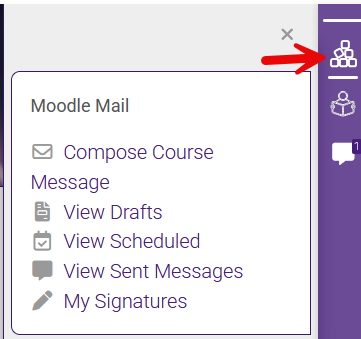
The block contains the following links:
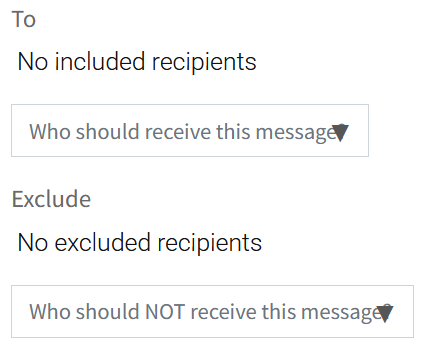
- Compose course message—Click here to write a new email. You can add or exclude recipients using the To and Exclude drop-down menus. You can add a specific role, group, or person.
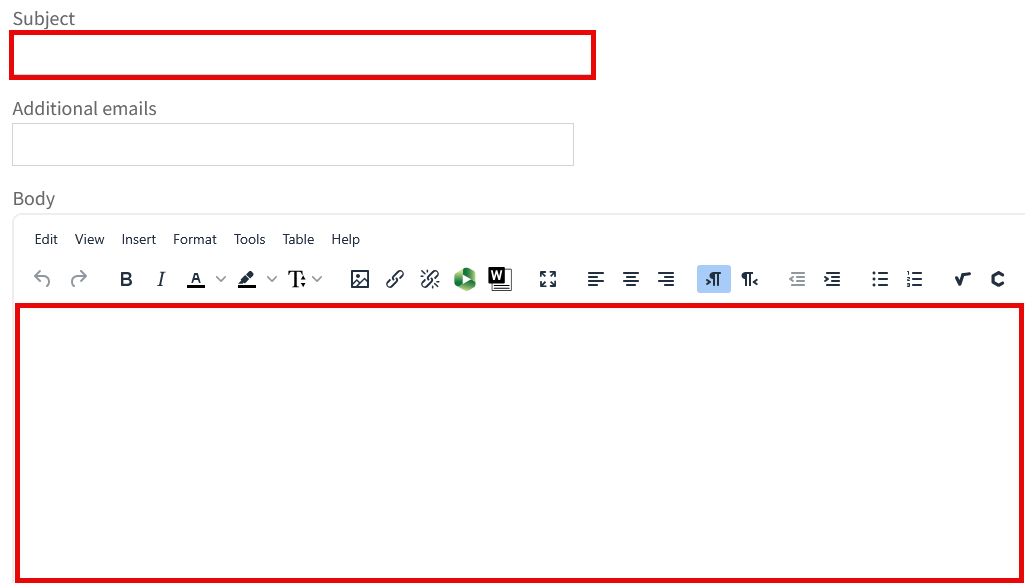
a. Compose a new email in the Body text box. A Subject is required.
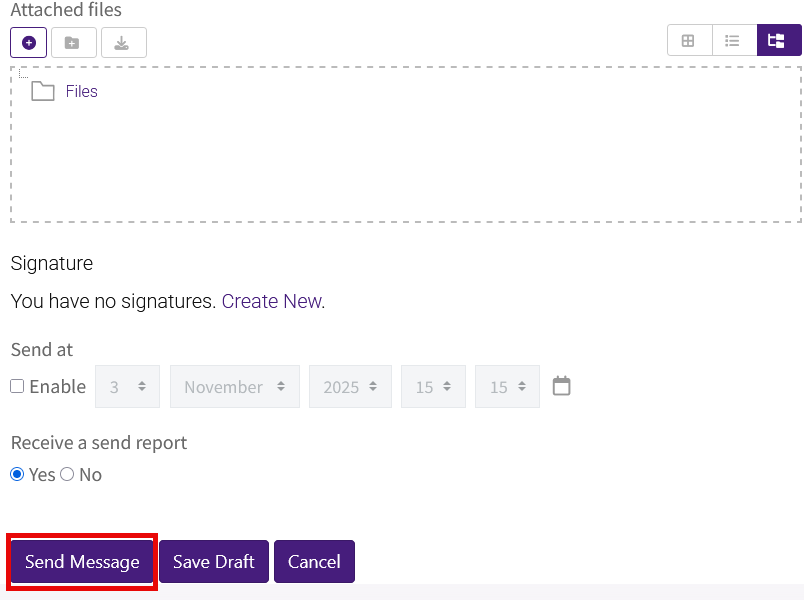
b. You can add Additional emails to send to someone who is not enrolled in the course. You may also add Attached files, add a Signature, and choose to Receive a send report (send yourself a summary of the message). If you wish to send at a future time and date, use the Send at options. To send the email, click Send Message. Your other options are to Save Draft or Cancel.
- View Drafts—Saved drafts can be viewed and edited here. Click Edit to re-open the email. Click Duplicate to create a copy of the draft. Click Delete to delete the draft.

- View Scheduled—Scheduled emails are messages that you have set up to be sent at a later time when you composed the message. This link will show a list of these messages with the dates and times they are scheduled to be sent:

Click View to see details about the scheduled email. Click Send Now to send immediately. Click Unqueue to stop the email from being sent at the scheduled time and date.
- View Sent Messages—Click here to see messages you have previously sent. Here you can view a summary of each message and Edit or Duplicate a message if you would like to send it again.
- My Signatures—At this link you can create a new email signature or view/update your existing signatures. You can mark one of these signatures as the default; these signatures will be available the next time you send a message through Moodle Mail.
20297
1/29/2026 3:15:23 PM