Essay (Auto-Grade) Question Type
The Essay (auto-grade) question type allows a response of a few sentences or paragraphs that can then be automatically graded. Instructors must enable and set up auto-grading conditions and may provide response options and feedback in the question setup. Responses are graded by Moodle according to general statistical items that are scored according to provided grade bands. Instructors can also provide specific phrases that Moodle will identify in the response. Thorough testing of this question type is recommended before using in a graded assessment.
Creating Essay (Auto-Grade) Questions in the Question Bank
- In your Moodle course, toggle edit mode to On.
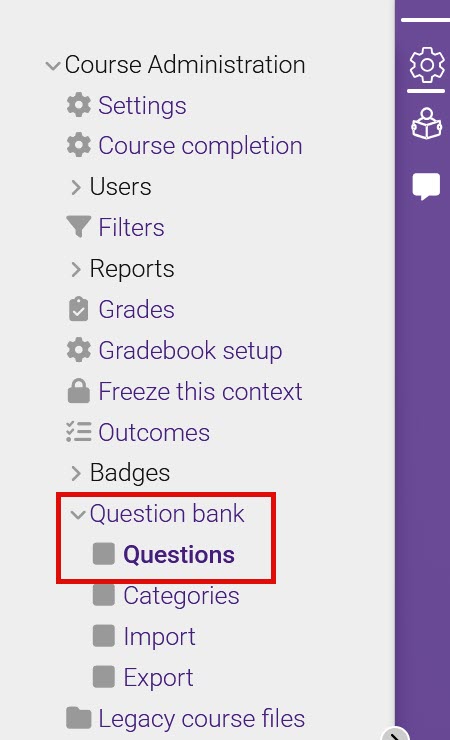
- Open the course sidebar and click the Course administration gear icon. In that menu, click on Question bank, then click on Questions.
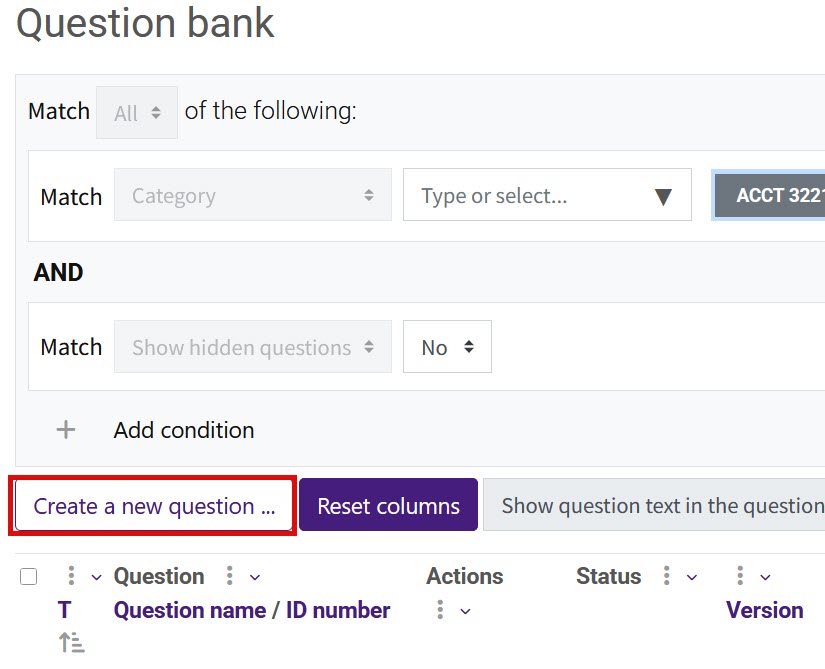
- In the question bank, click Create a new question.
- Select Essay (auto-grade) from the question type list and click Add.
- On the settings screen, select a Category. Then give the question a meaningful name and enter the Question text. Also set the Question status to Ready or Draft and provide the Default points.
- If necessary, complete the following optional settings: General feedback, Combined feedback, Response options (includes minimum and maximum word limits and attachments), and the Response template.
- REQUIRED: Set up the Auto-grading conditions, Grade bands, and Target phrases. Make sure Enable automatic grading is set to Yes.
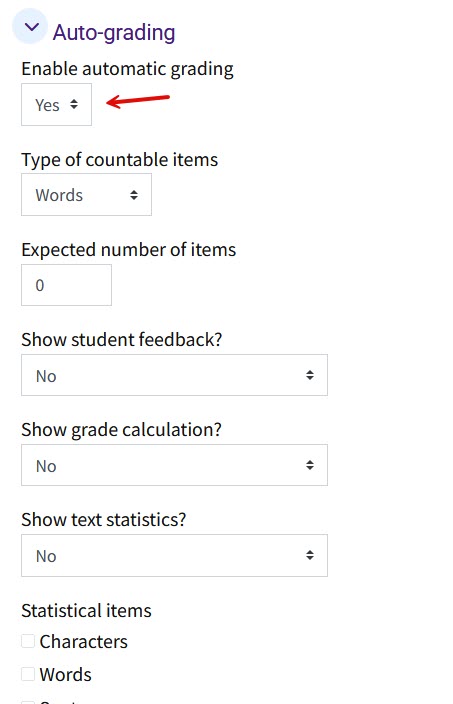
In the Auto-grading settings, choose what to show students when their response is graded. The system will automatically search for the statistical items listed. For more information on setting up these sections, click the question marks to the right of each setting or see the Resources section below.
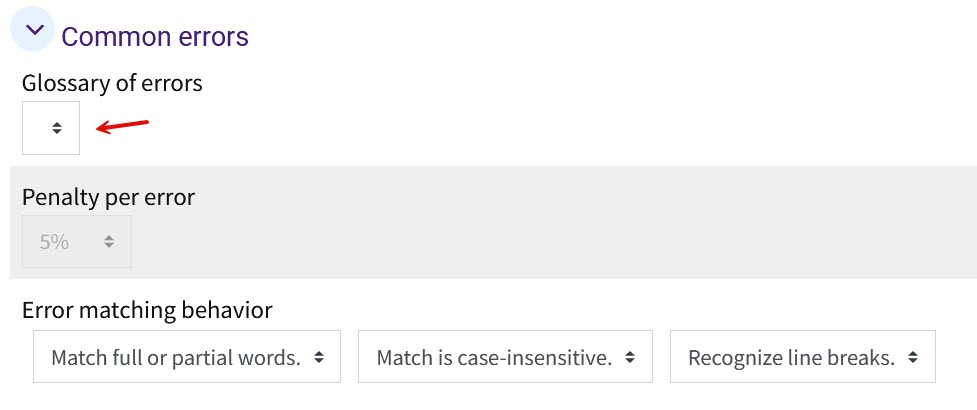
- If you are using a Moodle Glossary to identify common errors, select the glossary here.
- Set up the Multiple tries penalties and hints if necessary, and add any Tags.
- Save changes.
Resources
For more information and examples of this question type, see the following documentation.
20704
3/19/2026 10:27:28 AM