Moodle: Activities & Resources: Create a Turnitin Assignment (Faculty)
This article has not been updated recently and may contain dated material.
*PLEASE NOTE: The Turnitin Assignment 2 Moodle Activity is no longer available to add to courses. These Turnitin assignments will be disabled and no longer work on December 31, 2027. Currently, these assignments are experiencing intermittent connection failures and support is no longer available. If you have imported this assignment activity type from a previous course, you must create new assignment activities using the Turnitin Feedback Studio LTI. The Turnitin Plagiarism Plugin should be used for forum, quiz, and workshop activities. To see a side-by-side comparison of the Turnitin Feedback Studio LTI 1.3 (their new standard) and the Plagiarism Plugin, see their comparison chart.
The
Turnitin Assignment 2 is one option for requiring students to submit work through the Turnitin Feedback Studio. For other Turnitin options in Moodle, see
Turnitin Products Overview.
Create a Turnitin Assignment
- In your course, click on Create learning activity at the bottom of the section.
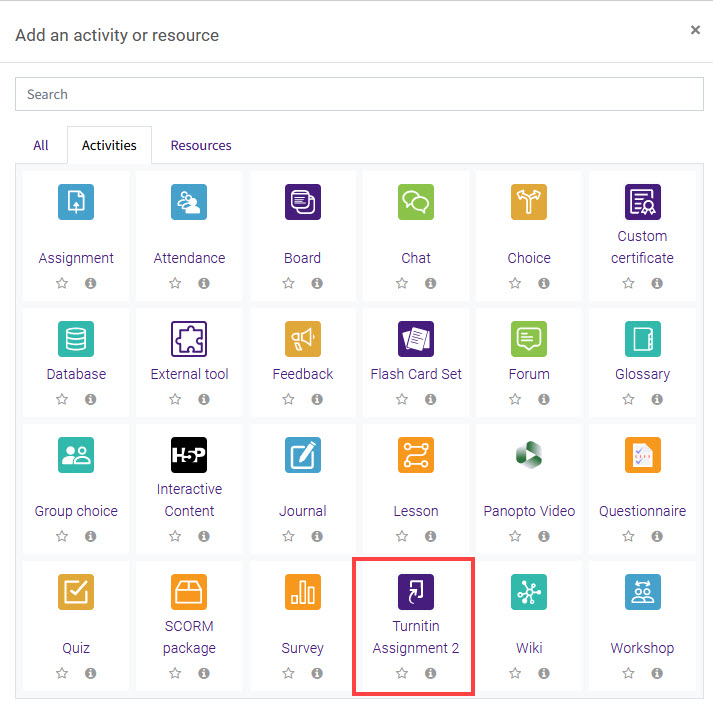
2. In either the All or Activities tab, select Turnitin Assignment 2.
3. Select settings for your assignment. For details about these settings, see Turnitin Settings in Detail.
4. Click Save and return to course to return to your course page. To continue setting up your assignment, click Save and display or reenter the assignment from your course page.
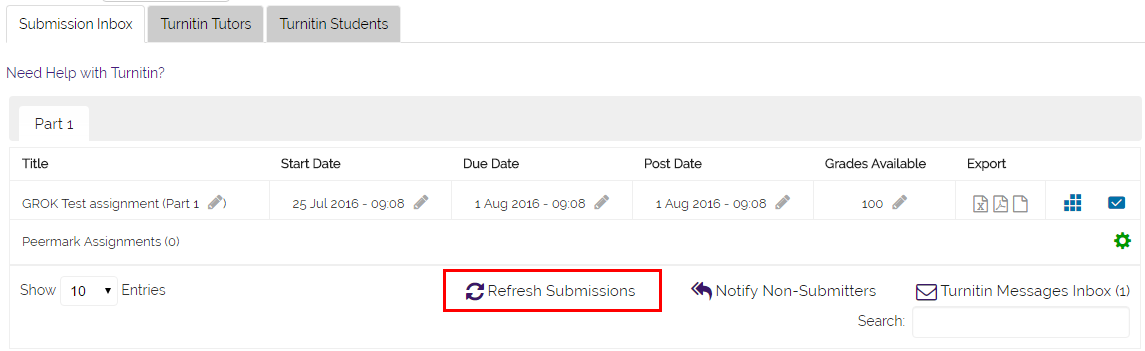
5. You can change any of the dates you previously set in this view. The Grades Available column shows the maximum grade for the assignment. When creating a Turnitin assignment, a grade item will automatically be created in the Gradebook. Be sure to go into the gradebook to ensure it is weighted properly and in the correct category if applicable.

NOTE: If you want to sync the assignment immediately with the Moodle gradebook, click Refresh Submissions.
Referenced from: Moodle and Turnitin
20243
6/11/2024 11:35:22 AM