Outlook 2016: Create a Signature
This article has not been updated recently and may contain dated material.
To Create a Signature in Windows Outlook:
1. Open Outlook 2016.
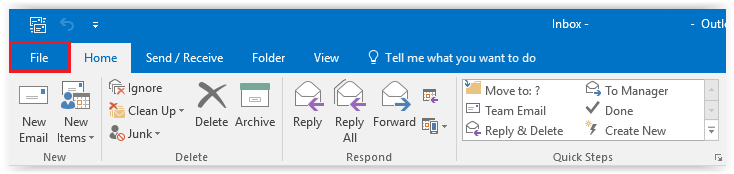
2. Choose File from the toolbar at the top of the screen.
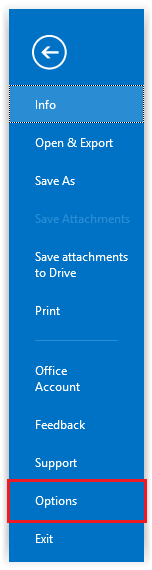
3. Switch to Options on the sidebar.
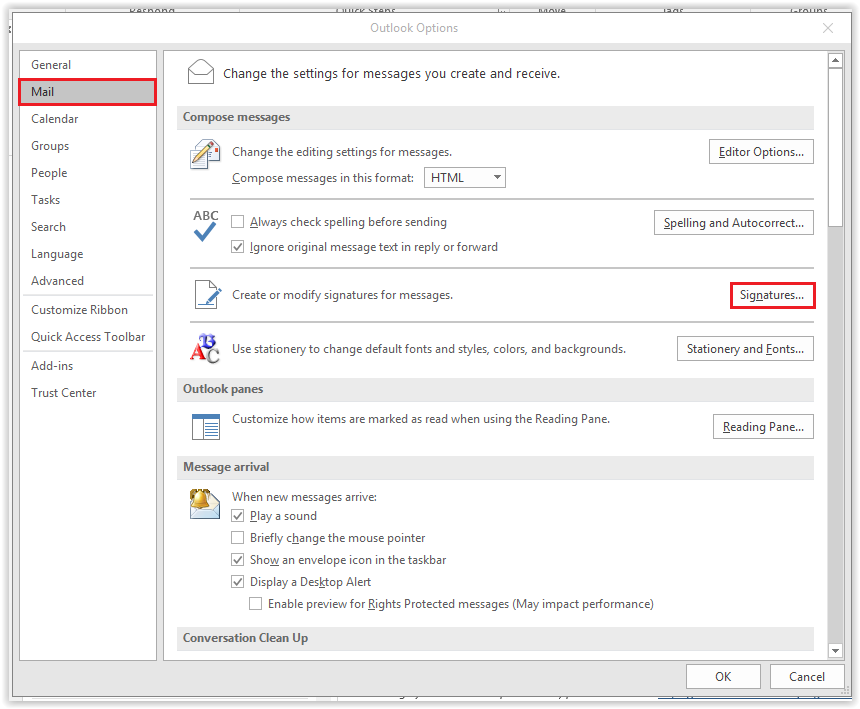
4. A window for Outlook Options should appear. Click Mail | Signatures.
5. In the Signatures window, click the New button.
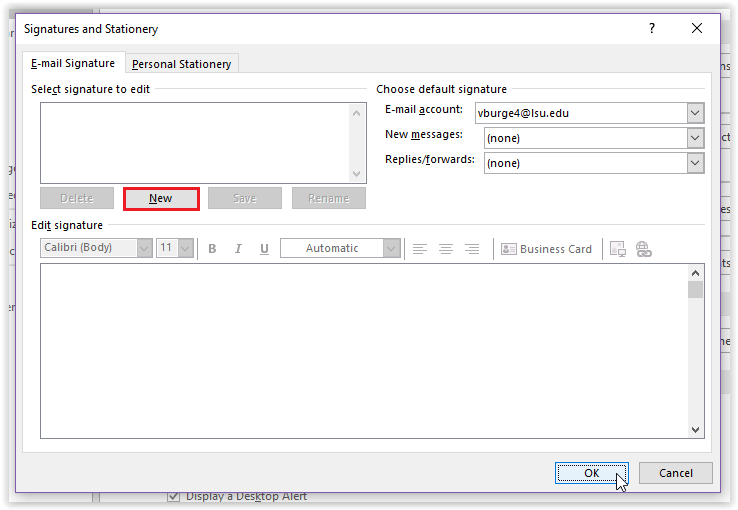
6. In the new dialog box, enter a Name for your signature.
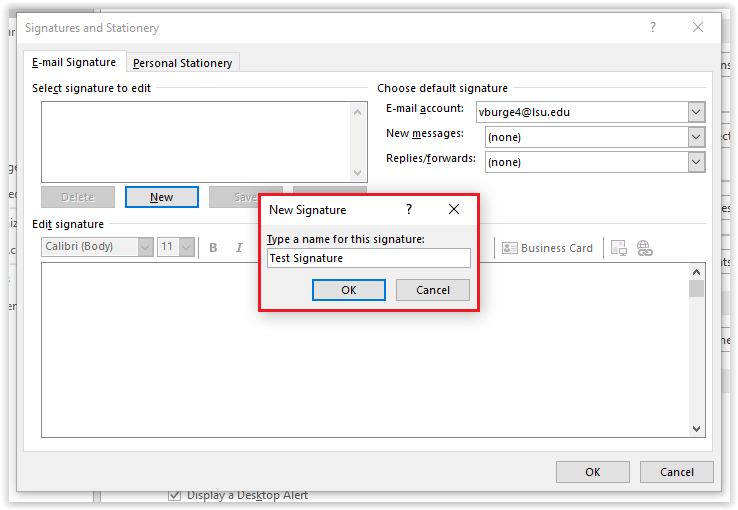
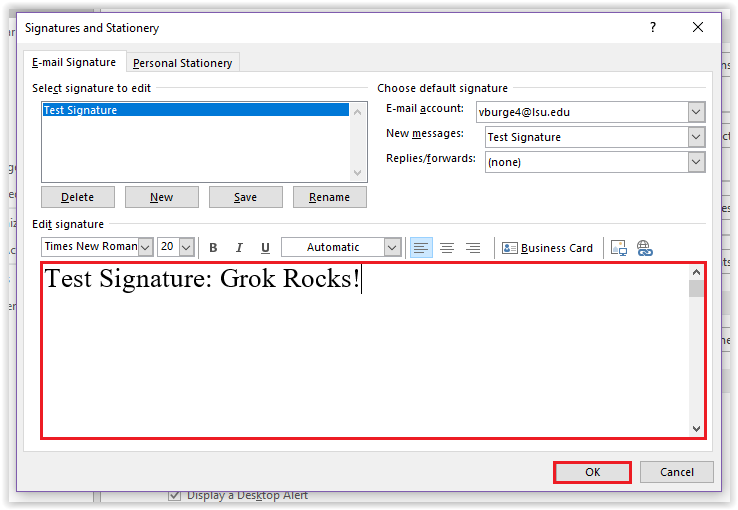
7. Next, type your desired Signature and press OK to save.
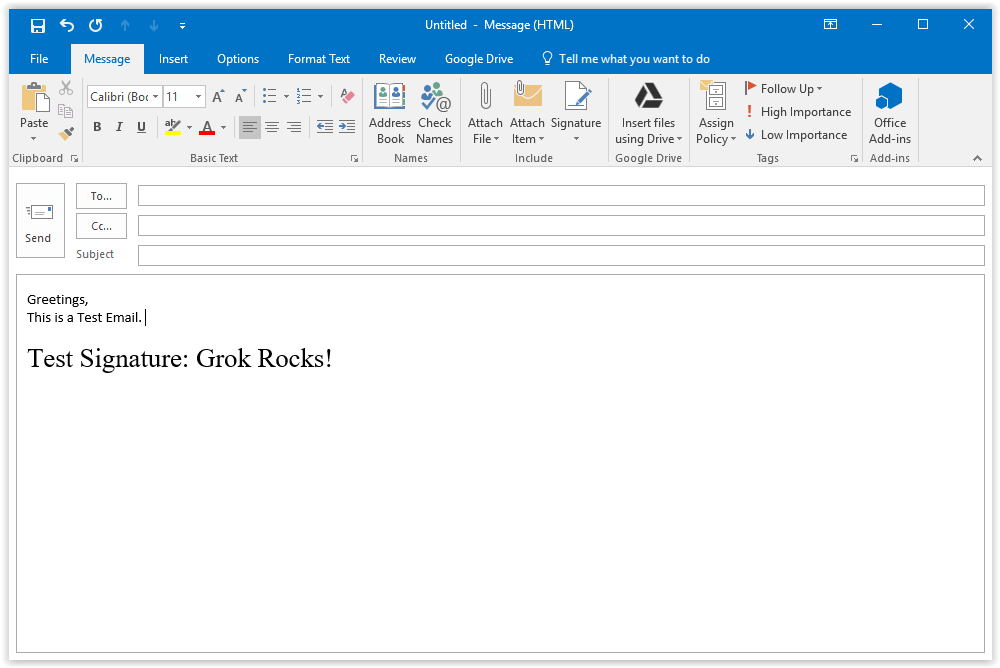
8. The new signature should now appear in all new outgoing emails.
Referenced from: Microsoft
19498
4/1/2024 8:47:50 AM