GROK Home
Mobile Site
Printable Version
Export PDF
Favorites Articles
Popular Articles
Recently
Updated Articles
Need Help? Open a Help Desk Ticket!
Topic
Suggestions And Feedback
Get setup to add your content to GROK |
|
Categories:
|
|
Wireless at LSU: FAQs & Troubleshooting Tips
|
|
|
|
Most Common Problems
1. Computer Date and Time: if your computer has the wrong date and time, it won't be able to connect to lsusecure.
2. Password Change: make sure your password change has taken effect by logging to a lab computer. If you are using Win XP, see FAQ below on how to remove cached credentials.
3. Third Party Utility: disable it and let Windows configure your adapter. If you still have issues, uninstall it.
4. TCP/IP settings: must be set to DHCP, including DNS.
5. Certificate Trust Settings: if you are using Mac, make sure your cert trust settings are set to "Always Trust" (check Keychain Access).
6. Drivers: download the latest drivers for your wireless adapter.
7. Windows XP Hotfix: install Hotfix KB885453 (see article 3276).
8. lsuguest users can't get to the authentication page: see Wireless Troubleshooting tip #3.
9. iPhone or iPod Touch: if unable to connect to lsusecure, reset network settings: Home-->Settings-->General-->Reset-->Reset Network Settings
General Wireless Questions
How fast is the wireless network?
What does SSID mean?
Why is my wireless connection so slow?
I have a laptop but I don’t have a wireless card, can I borrow one?
Where can I access the wireless network?
What types of Access Points does the wireless network use?
Can I use a PDA to access the wireless network?
What does 802.11 mean?
What wireless adapters are supported on the LSU wireless network?
Can a cordless phone interfere with the wireless network?
What are some potential sources of interference?
Will my iPhone/iPod/Wii/XBox/PlayStation be able to connect to "lsusecure"?
List of recommended wireless adapters
List of supported mobile devices
Will my Palm handheld work with lsusecure?
Wireless Troubleshooting Tips
1. How do I remove the cached user credentials that are used for PEAP authentication in Windows XP?
2. How do I check the drivers for my wireless adapter?
3. Can't get to the authentication page/Can't get past the authentication page (lsuguest only)?
4. LSUGUEST: When I bring up Internet Explorer, the browser gets stuck at the redirection page?
5. Potential problems with "Use Windows to configure my wireless settings"
6. How to delete the Windows XP cached credentials.
7. I've recently changed my PAWS password, and now I cannot log on to the wireless network (Windows XP only)
8. What do I do if my username and password combination is invalid?
9. Unable to access library resources (electronic journals, articles etc) over wireless?
10. How do I know if my computer belongs to the LSU domain?
11. My computer is unable to connect to lsusecure
12. How do I enable the Wireless Configuration service (802.1x) on Windows 2000?
13. The tab Wireless Networks is not available in the Wireless Network Connections Properties window
14. Driver download and installation instructions for Cisco Aironet 350, AIR-CB20A and AIR-CB21AG
15. How do I setup "lsusecure" to allow multiple users log on (with PAWS credentials) to a computer?
16. Problems with Dell Wireless WLAN Card Utility
17. How do I disable a wireless network and adapter?
18. How can I use wireless to print on campus?
How fast is the wireless network? The 802.11a/b/g standards provide transmission speeds of up to 54Mbps (11Mbps on 802.11b). This is the theoretical maximum speed. In reality, the actual throughput will be about 60% of the theoretical maximum.
What does SSID mean? SSID stands for Service Set Identifier. This is simply a name used to identify a wireless network. The SSID can either be broadcast or hidden. When the SSID is hidden, the user must know what the SSID of the wireless network is in order to gain access. When the SSID is broadcast, the wireless network is available to anybody. The access points on the LSU wireless network are configured to broadcast their SSID. Some wireless adapters will allow you to leave the SSID field blank or enter the word “ANY”. This instructs the wireless clients to obtain whatever SSID is being broadcast by the access point. You can also set the SSID explicitly.
Why is my wireless connection so slow? Wireless transmissions can be affected by a variety of factors including walls, metal objects, trees, and distance from an access point. In addition, wireless is a shared resource. As a result, the greater the number of wireless users connected to a particular access point, the lower the effective bandwidth that will be available to each individual user.
I have a laptop but I don't have a wireless card, can I borrow one? Currently only the following buildings have wireless cards available for check-out:
Middleton
College of Design
Union
You must have an LSU student ID to check out the card. There is no cost to check out the cards. Contact the individual buildings/departments for specific details about their check-out programs.
Where can I access the wireless network? There are various locations throughout campus where wireless is available. For more information, please check out the wireless coverage article.
What types of Access Points does the wireless network use? The LSU wireless network is built on Cisco Aironet 1200 series access points. The 1200 series access point is a modular radio that supports all wireless standards 802.11a/b/g.
Can I use a PDA to access the wireless network? Yes, as long as your PDA comes equipped with an 802.11b/g compliant card and is able to support the security requirements.
What does 802.11 mean? 802.11 is a standard that was developed by the Institute of Electrical and Electronic Engineers (IEEE). It is the original wireless specification. Extensions of the 802.11 standard were given the same number with a letter suffix.
802.11 Provides up to 2Mbps transmission in the 2.4GHz band
802.11b Provides up to 11Mbps transmission in the 2.4GHz band
802.11a Provides up to 54Mbps transmission in the 5GHz band
802.11g Provides up to 54Mbps transmission in the 2.4GHz band
What wireless adapters are supported on the LSU wireless network?The LSU wireless network supports wireless adapters that are compatible with Cisco Aironet access points. For the best performance and reliability, we highly recommend Cisco wireless adapters. We also recommend that you get an adapter that supports all three wireless standards 802.11a/b/g.
If you already have a wireless adapter, follow this link to see if it is compatible with the LSU wireless network. If your wireless client device does not appear on this page, you might still be able to use it, although we cannot guarantee that your device will work properly with the LSU wireless network.
Can a cordless phone interfere with the wireless network? Cordless phones, not cellular phones, will interfere with the wireless network if they transmit in the 2.4GHz frequency range. Some cordless phones usually display the frequency at which they transmit on the phone itself or on the base station. If you can't determine what frequency your phone works on, check your manual or search on the Internet. If you determine that your phone works on the 2.4GHz range, replace it with a 900MHz or 5GHz unit.
What are some potential sources of interference?
- Cordless phones: There are different frequencies of cordless phones. 2.4Ghz phones, in particular, will interfere with wireless networking when used. To get around this problem, replace your phone with a 900Mhz or 5Ghz unit.
-Bluetooth: This is a very popular technology that allows wireless connectivity of peripheral devices at short range. Wireless keyboards, mice, cameras, and PDAs are just a few examples. Unfortunately, Bluetooth operates in the 2.4Ghz range, which is the same frequency that 802.11b/g uses. Although the modulation method used in Bluetooth is different than in 802.11, the potential for interference still exists and performance degradation can vary from no noticeable problems to complete loss of connectivity.
-Microwave ovens: Placing your computer in close proximity to a running microwave oven may cause interference.
Will my iPhone/iPod/Wii/XBox/PlayStation be able to connect to "lsusecure"? The new Apple iPhone 3G supports WPA-enterprise, and therefore is able to connect to lsusecure. Previous versions of the Apple iPhone, inlcuding the iPod touch can only connect to lsusecure as long as they are running software version 2.0. Wii/XBox/PlayStation and the like will only be supported if they meet the requirements to connect to lsusecure.
List of recommended wireless adapters Any wireless adapter that supports WPA should work with the LSU wireless network. The following is a list of recommended wireless adapters that ITS has tested and are known to work with "lsusecure".
PC Card (PCMCIA) wireless adapters

Netgear 54Mbps Wireless PC card - part no. WG511NA
Belkin Wireless G Notebook card - part no. F5D7010
D-Link High Speed 2.4GHz (802.11g) Wireless - part no. DWL-G650
Netgear 54Mbps Wireless PC card - part no. WG511
Netgear WG511T 108 Mbps Wireless PC card - part no. WG511TNA
D-Link Wireless G Notebook Adapter - part no. WNA-1330
TRENDNet 54Mbps Wireless PC card - part no. TEW-421PC
Belkin Dual-Band Wireless A+G Notebook Network card - part no. F6D3010
Linksys Wireless-G Notebook Adapter - part no. WPC54G
Buffalo 54M Wireless LAN card - part no. WLI-CB-G54A
2WIRE Wireless PC card
PC Card (PCMCIA) with 802.1x Supplicant (Highly recommended for Windows 2000)
Belkin, F5D7010 ver.7, Wireless G Notebook Card
Dlink, DWL-G680, High-Powered Wireless 108G, Notebook Adapter
Cisco, AIR-CB21AG-A-K9, 802.11abg Wireless Adapter
Proxim/Orinoco, 8480-FC, Orinoco 11a.\/b/g ComboCard (Gold)
Linksys, WUSB54G ver4, Wireless G USB NEtwork Adapter
Airlink, AWLC4030, Super G™ Wireless Cardbus Adapter
Dell, True Mobile 1150, 11Mbps Wireless LAN Adapter
USB wireless adapters
Linksys Compact Wireless-G USB Adapter - part no. WUSB54GC
Linksys Wireless-G USB Network Adapter - part no. WUSB54G ver.4
Linksys Wireless-G USB Network Adapter - part no. WUSB54GR
Hawking Technology Wireless-G USB Adapter - part no. HWUG1
TRENDNet 54Mbps Wireless USB 2.0 Adapter - part no. TEW-424UB
D-Link Wireless N USB Adapter - part no. DWA-130
List of supported mobile devices The following is a list of mobile devices that we know work with lsusecure:
Nokia N800
BlackBerry 7270
Palm TX with ESU software
Cingular 8125 with Windows Mobile 5.0
iPhone (2.0)
iPod touch (2.0)
Will my Palm handheld work with lsusecure? Palm TX with Enterprise Security Update (ESU) will work with lsusecure. For more information, click on the following link: http://software.palm.com/us/html/display_palm_product.jsp?navCategoryId=&id=prod1730855
1. How do I remove the cached user credentials that are used for PEAP authentication in Windows XP? See FAQ #6
2. How do I check the drivers for my wireless adapter? The most common problem we encounter with wireless users that can't connect to the wireless network is that their drivers are not up-to-date. Card manufacturers regularly release new driver updates in order to solve issues such as interoperability problems with access points from other vendors or simply to get rid of bugs. Having the latest drivers for your wireless adapter will assure that you'll have the best performance, reliability, and functionality.
The following are instructions to check drivers on a Windows XP machine:
1. Click on Start>Settings>Control Panel>Network Connections.
2. Right click on your wireless adapter, and then click on Properties.
3. In the General tab, click on Configure, and then click on the Driver tab.
Once you have found out what drivers you have, visit the website for the manufacturer of your wireless device. Almost all manufacturers have support pages where you can identify your drivers and download files as needed. If the driver on your computer is older than the driver on the manufacturer's website, download the newer driver.
3. Can't get to the authentication page/Can't get past the authentication page (applies to lsuguest only) Check your browser settings and make sure the following are not enabled:
Internet Explorer
1. Click on Tools--> Internet Options --> Connections --> LAN Settings and make sure all boxes are unchecked.
2. Close your browser and open a new one. You should now be properly routed to the authentication page.
Firefox
1. Tools--> Options--> Advanced--> Network--> Connections Settings, select "Direct connection to the Internet"
2. Close your browser and open a new one. You should now be properly routed to the authentication page.
Safari
1. Click on Safari --> Preferences --> Advanced --> Proxies --> Proxy Settings, under "select a proxy server to configure", ensure that no boxes are checked.
2. Close your browser and open a new one. You should now be properly routed to the authentication page.
4. LSUGUEST: When I bring up Internet Explorer, my browser gets stuck on the redirection page? See FAQ #3
5. See Wireless at LSU: Potential problems with "Use Windows to configure my wireless settings?"
6. How to delete the Windows XP cached credentials: Note: this only applies to users who did not check the box "Automatically use my Windows logon name and password" and have not upgraded their computers to service pack 3 . Windows XP will automatically cache your PEAP credentials for reuse. There is no workaround to prevent this. After you have changed your PAWS password, you will need to delete your cached credentials in your machine so that you can be prompted to enter your new password.
In order to delete the cached credentials, you can either delete "lsusecure" from your preferred networks, and then add it again, or you can delete them straight from the registry. The following script will automatically delete the cached credentials: removeEAPinfo.zip Click on the link "removeEAPinfo.zip". Extract and save the file "removeEAPinfo.reg" in a convenient location. Double-clicking the file should run the script and remove your credentials. For more information about this issue, visit the Microsoft support website and search for article ID 823731.
7. I've recently changed my PAWS password, and now I cannot log on to the wireless network (Windows XP only): refer to FAQ #11.
8. What do I do if my username and password combination is invalid? If your credentials are being rejected, try resetting your password. To test your new credentials, try logging on to a public lab machine. If your credentials are still being rejected, try logging on as lsu\username or username@lsu.edu, where "username" is your PAWS username.
9. Unable to access library resources (electronic journals, articles, etc.) over wireless: In order to properly connect to library resources over wireless you need to connect to these resources through the library page http://www.lib.lsu.edu. Scifinder and similar applications will not work over wireless . In addition, if you are using Mozilla and you have the add-on “Redirect Remover”, you will have to uninstall it as this program bypasses the library proxy.
10. How do I know if my computer belongs to the LSU domain (Windows XP)? Right click the My Computer icon and select Properties. In the System Properties window, click on the Computer Name tab. If your computer belongs to the LSU domain, it will display it as depicted below:
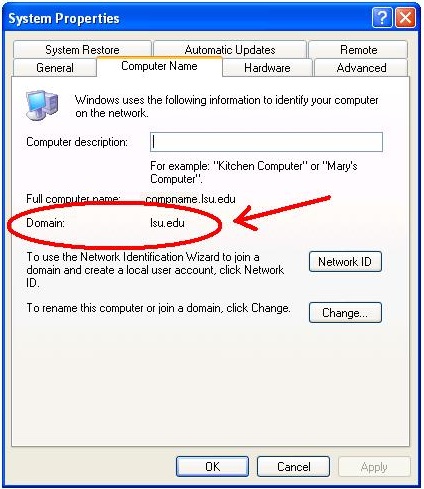
11. My computer is unable to connect to lsusecure
If your computer belongs to the LSU domain and you checked the box "Automatically use my Windows logon name and password", check the following:
1. Are you logged on as Administrator? If so, authentication will fail because Windows is using the administrator's credentials to log you to the wireless network, and these credentials are not valid. Only PAWS credentials are valid. Log off and log back on using your PAWS username and password.
2. Disable and re-enable your wireless adapter.
3. If you have changed your password, Windows will not update the new password unless you lock your computer (press Ctrl-Alt-Del) and log back with your new credentials. Try unchecking the option "Automatically use my Windows logon name and password". You should be prompted to enter your username and password. If this works, you'll have access to the network. So now lock your computer, and log back on with your new credentials. Your computer should now be updated. Check back the option "Automatically use my Windows logon name and password". If you lock yourself out of the computer due to this security precaution, contact the Help Desk at 578-3375.
If your computer does not belong to the LSU domain, then you had to uncheck the box "Automatically use my Windows logon name and password". Check the following:
1. Make sure you are using your PAWS username and password and that you are leaving the Logon Domain field empty.
2. If you are not being prompted to enter your credentials, try removing the cached credentials on your computer by running the script removeEAPinfo.zip
2. Have you changed your password? If you have, then Windows is still trying to use your old cached credentials. Delete your cached credentials by runnning the script removeEAPinfo.zip
3. Try removing lsusecure from your preferred networks in the Windows Network Connection Properties window and then add it again.
4. Disable and re-enable your wireless adapter.
5. Try logging on as lsu\username or username@lsu.edu, where "username" is your PAWS username.
12. How do I enable the Wireless Configuration service (802.1x) on Windows 2000?
1. Click on Start-> Settings-> Control Panel-> Administrative Tools -> Services
2. In the Services window, scroll down to the bottom and double-click on the service named Wireless Configuration
3. In the General tab, select Automatic from the Startup type drop-down menu, and then click the Start button.
4. Click Apply and then OK.
13. The tab "Wireless Networks" in not available in the Wireless Network Connections Properties window Refer to FAQ #15
14. Driver download and installation instructions for Cisco Aironet 350, AIR-CB20A and AIR-CB21AG If you have a Cisco Aironet wireless adapter, please click on the links below to obtain the correct drivers and installation instructions:
Drivers and Instructions for Cisco Aironet 350, and AIR-CB20A
Drivers and Instructions for Cisco Aironet AIR-CB21AG
Note: The Cisco Aironet 340 does not work with lsusecure.
15. How do I setup "lsusecure" to allow multiple users (with PAWS credentials) to log on to a computer? The only way this will work is if your computer is part of the LSU domain (see FAQ# 10) and when you configure "lsusecure" you check the option "Automatically use my Windows logon name and password". The users will be automatically logged on to the wireless network when they log on to the computer. This is also known as Single-Sign On. Please note that for a computer to join the domain for the first time, it must be connected to a hard-wired connection.
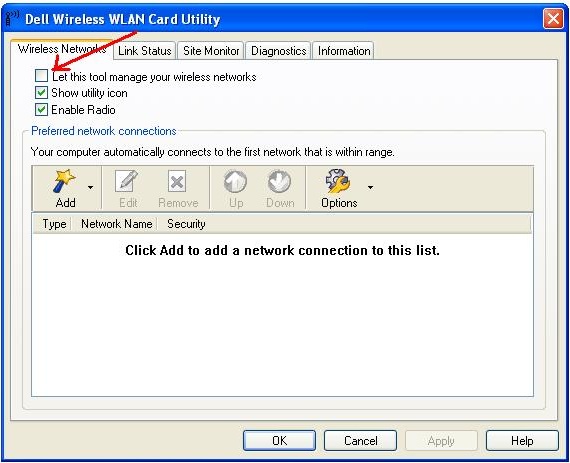
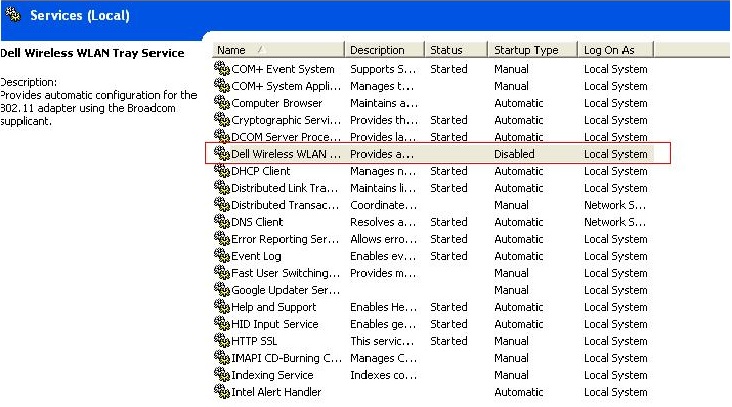
16. Problems with Dell Wireless WLAN Card Utility If you have a Dell computer it will most likely come with a utility called "Dell Wireless WLAN Card Utility". This utility is available to manage your wireless networks. Windows also has a utility to manage your wireless networks. A problem can arise when both utilities are enabled and both of them are trying to manage your wireless networks. The solution is to disable one of the utilities. We recommend that you disable the Dell utility and let Windows manage your wireless networks. To do so, there are two options:
Option 1
-Open the Dell utility by clicking on Start-->Programs-->Dell Wireless
-On the Wireless Networks tab, uncheck the box "Let this tool manage your wireless networks" and click Apply

Option 2
-Click on Start-->Run and type in services.msc
-Right-click on the service called Dell Wireless WLAN Utility and click on Properties.
-For the Startup type select Disabled.

17. For more information about disabling wireless networks and adapters, click HERE
18. This article shows you the step-by-step process of how to send a print job from your Windows laptop to one of the LSU Public Access computer lab print servers.
Anyone with a valid PAWS account and a TigerCard now has the ability to print out documents remotely from their laptop in any of the LSU Public Access computer labs. Once you connect to a printer and submit your print job, all you have to do is use your TigerCard to release and pay for the job at the PHAROS pay-station located in the lab where your print job was submitted.
Find information on wireless printing from a Mac laptop HERE.
Find information on wireless printing from a Windows laptop HERE.
5415
8/13/2009 4:01:25 PM
Attachments:
|
|
|
|