Moodle: Blocks: Make Moodle Mail Unavailable to Students (Faculty)
This article has not been updated recently and may contain dated material.
Instructors can change the settings in Moodle Mail to restrict students from sending email to other users in a course. If this is disabled, students will not see the Moodle Mail block in their course or the Moodle Mail icon on the My Courses course card. Students can still contact other users and instructors depending on their course and personal settings. However, they will not be able to directly email other students in your course. For an overview of how users communicate in Moodle, see GROK 20188: Communicating in Moodle Overview.
To disable Moodle Mail in your course for students, follow the steps below.
Making Moodle Mail Unavailable to Students in a Course
- In your Moodle course, turn Editing on, open the sidebar, and click on the blocks icon. If the Moodle Mail block is not in the block drawer, follow the steps to add it in GROK 19791: Adding a Block.
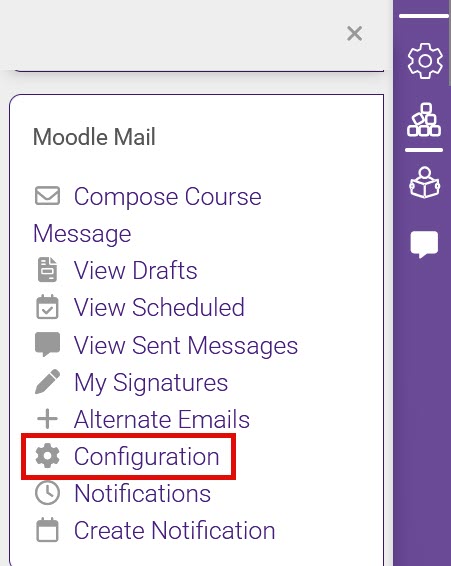
- In the Moodle Mail block, click Configuration.
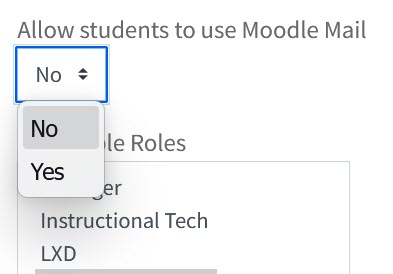
- Use the drop down box to select No. Instructors can also use the Selectable roles to limit the ability of other users in the course to use Moodle Mail.
- Click Save preferences.
18578
4/10/2026 3:30:18 PM