Printing Instructions for Library Printing
At the Library, it is possible to print out documents and assignments as needed.
Anyone with a valid MyLSU Account ID and a Tiger Card can print documents remotely to any of the LSU Public Access computer lab printers. Follow the instructions below to learn how to print documents at LSU.
If you receive Errors or have trouble, see Printing Problems.
To Print in the LSU Library:
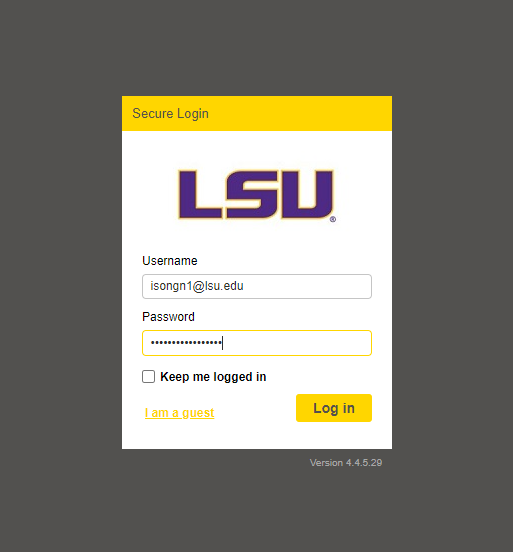
- Go to print.lsu.edu and log in with your myLSU credentials. You can navigate to this website on any of the available library computers if you do not have a laptop.
PLEASE NOTE: The print site may not work on Safari. Please use a different web browser.
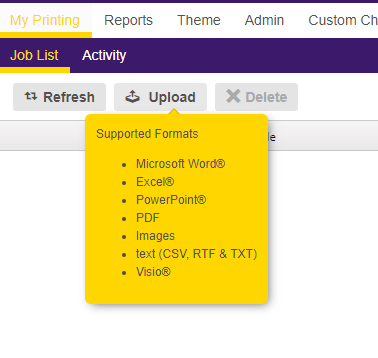
- Once logged in, click upload and select the appropriate file that you wish to print. If the document you are trying to print IS NOT one of these supported file types, you will need to change the file type so that you can upload it to print.lsu.edu. The Print Desk or library CANNOT edit your documents.
-
Supported Formats:
- i.Microsoft Word
- ii.Excel
- iii.Powerpoint
- iv.PDF
- v.Images
- vi.Text (CSV, RTF & TXT)
- vii.Visio
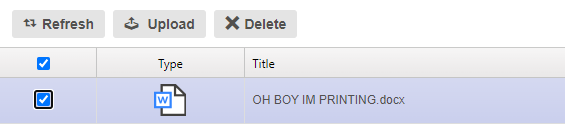
- Once the document has been uploaded, you will see red text that says ‘Processing…’ once this text goes away, the document will be ready to print in queue.

- Select your document and make sure you have it set to the correct print options. These options are in the bottom right corner of print.lsu.edu and you can change the values after selecting your document.
- In these options, you will be able to change your document:
- Color (Choose between Black and White or Color)
- Pages per side (How many pages should be printed on a single sheet of paper)
- Sides (Will the document be double or single sided)
- Copies (How many copies of the document will print) (This will affect the final price)
- Page Range (Specific range of pages from the document to print)
- IMPORTANT: These settings will only change the file as you’ve uploaded it, if you need to adjust words/images to fit the page, you must do this BEFORE uploading.

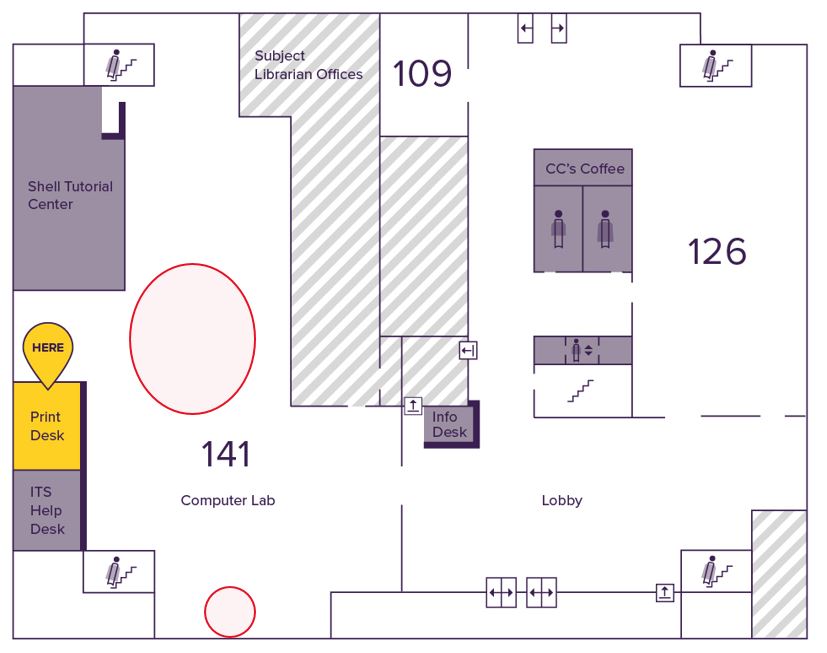
- After you have successfully uploaded the document and set the print options, you will need to go to one of the two print stations that are located in the library on the first floor in room 141 or on the second floor in room 241. The print stations in 141 can be found along the windows and near a column in the middle of the Computer lab (red circles show where stations are located).
.
- Once at the printing station, swipe your Tigercard using the card reader. This will allow you to see the list of documents that are in the queue (You will NOT need to log into the print station). Your document should be labeled with the file name and will be followed by your username in the queue. Select your document from the list of queued documents.
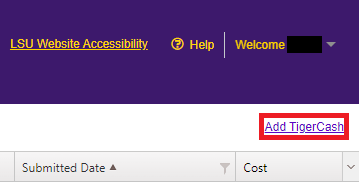
- NOTE: If you need to add TigerCash to your account to pay for your print job, click the "Add TigerCash" button in the top-right corner of the Print Job screen, and follow the steps on the Tiger Card Office Website to add funds to your account. Please see the Printing On Campus Overview Page for print job rates or Tiger Card Services (or tcard.lsu.edu) for further questions about your Tiger Card or adding TigerCash.
- After selecting your document, Your document should print when it is next up in the queue. If you receive any printer errors not related to the steps listed above, please go to the Print Desk on the first floor in room 141 so that a technical support agent can assist you further.
20582
4/1/2024 8:13:12 AM