Wireless: Printing from a Laptop via Package
There may be broken links in this article, the GROK staff has been notified and is working to resolve the issue.
This article shows you the step-by-step process of how to send a print job from your laptop to one of the LSU Public Access computer lab print servers via LSU's printer drivers. Once you have downloaded and installed that printer's software package, it is as simple as selecting that printer from your updated list and submitting your document for printing.
Anyone with a valid MyLSU Account ID and a Tiger Card can also print documents remotely to any of the LSU Public Access computer lab printers via print.lsu.edu.
If you receive Errors or have trouble, see Printing Problems.
Print from Your Laptop to an On-Campus Printer:
NOTE: If you have installed a printer package with the Pharos Popup previously on Windows, it may no longer be valid and working. We would recommend you first uninstall the Pharos Popup client in Windows Add or Remove Programs (clicking Pharos then choosing Uninstall, checking "Pharos Popups" as the uninstall option, and proceeding with the uninstaller.) Once finished, you can download and install the new package from the link below.
1. Go to the LSU Public Access Printer Packages page.
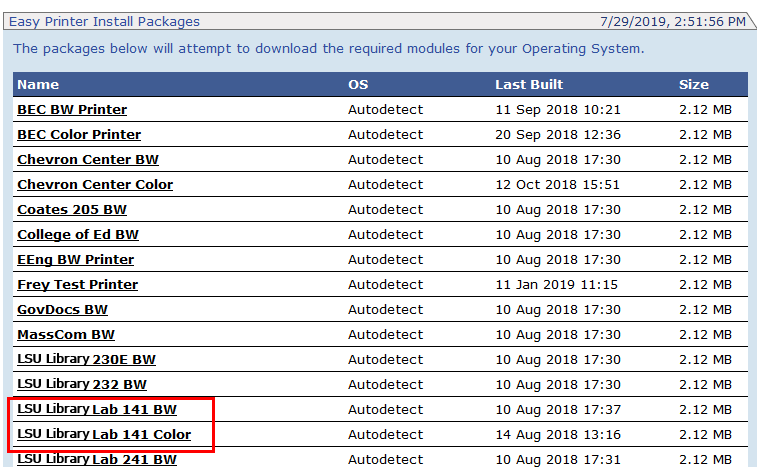
2. Find the appropriate printer that you would like to print from the list. In this example, we want to print our document in the LSU Library Computer Lab in room 141.
3. Click the LSU Library 141 BW and/or LSU Library 141 Color link.
4. Click Allow if you are prompted to allow this software to make changes to your computer. If on Mac, you may need to mark the program as an authorized software for it to run.
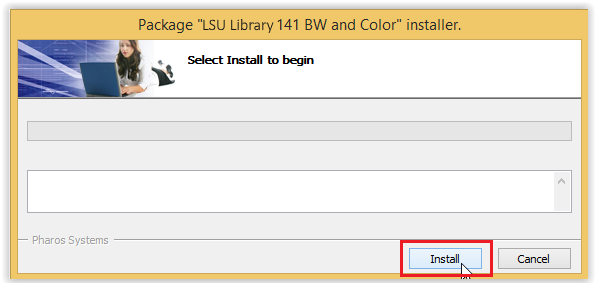
5. Click Install to begin the installation. When the installation is complete, click Finish.
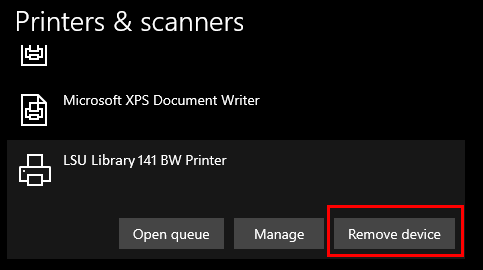
- NOTE: If the installation fails on Windows, please remove it from the Printers & scanners section in the Windows Settings (click on LSU Library 141 Printer and select Remove Device) and then reinstall from step 1 above. It should then work.
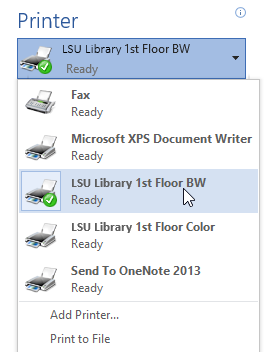
6. The Print dialog will now show the Lab Printers that you just installed.
Report any issues to the Service Desk by emailing servicedesk@lsu.edu or calling 578-3375.
234
4/1/2024 9:59:51 AM