Degree Audit: Available Features
This article has not been updated recently and may contain dated material.
NOTE
If you are using a mobile device to access the myLSU portal, you may need to rotate your phone to landscape mode to access the menu.
General Information
The following is a guide to the features of the Degree Audit Report. This report can be found under Student Services on the myLSU Portal Desktop.
Available Features
Feature 1: Degree Audit Task Bar
Available Links include:
- Degree Audit Report Link
- Takes you to the Degree Audit Report front page.
- Related Services Link
- Course Offerings - Takes you to the LSU database of course offerings.
- Personal Schedule - Takes you to the personal schedule application.

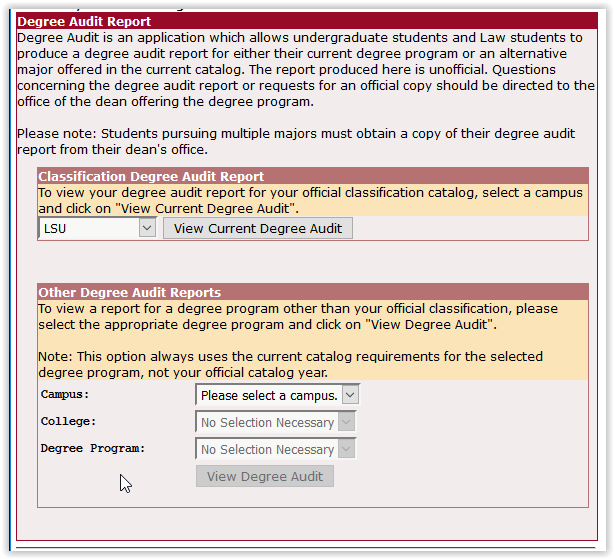
Feature 2: Viewing Other Degree Audit Reports
This feature provides a way for students to generate a degree audit summary for a degree program other than their current classification.
To access this feature, you must select the right arrow to expand the following menu:
- Campus:
- Here you can choose from LSU and LSU Law Center.
- College:
- Here you can choose from the colleges under LSU.
- Degree Program:
- Here you can choose a degree program under the college you have selected.
- Previously Viewed Reports:
- Here you can select a degree audit report for a degree program you have previously viewed in the past few hours.
Feature 3: Degree Audit Summary Information
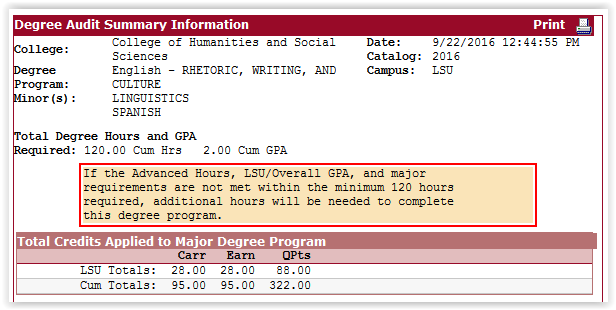
This feature allows the student to see the following:
- Current College (ex. Arts and Sciences)
- Degree Program (ex. Religious Studies)
- Declared Minor(s) (ex. Spanish)
- Catalog Year (ex. 2007)
- Campus (ex. LSU or Law Center)
- The Date & Time that the degree audit report was created (ex. 5/17/2007 10:52:56 AM)
- Important Messages that may apply will display.
- The Student's Summary of Total Credits applied to his/her Major Degree Program.
- The LSU Totals show what the carried and earned credits as well as the quality points the student has acquired in the LSU system.
- The Cum Totals (Cumulative Totals) show what carried and earned credits, as well as quality points, the student has acquired throughout his/her enrollment at all colleges & universities.
Feature 4: Viewing the Degree Audit Report
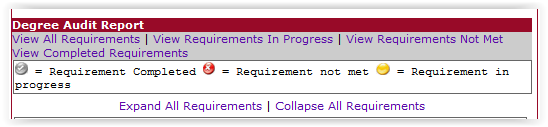
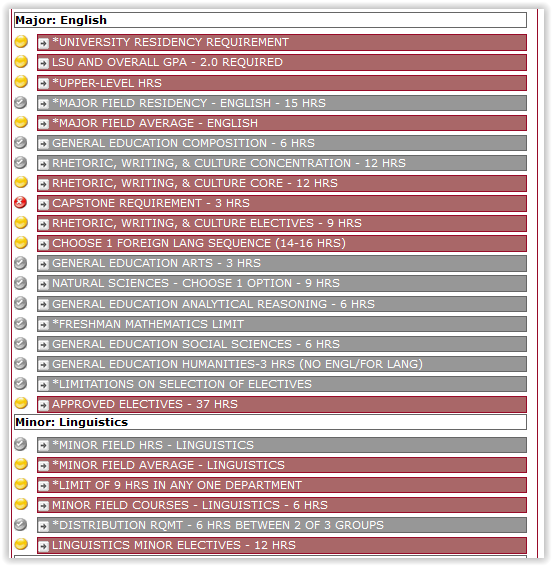
This feature allows the student to browse through their degree audit report in four different views. These symbols can be explained further at the Degree Audit: LSU Overview.
You also have the option of expanding and collapsing all requirements below the symbol instructions:
- View All Requirements
- This expands the requirements so that all tabs can be seen.
- View Requirements In Progress
- This expands only the requirements that are in progress.
- View Requirements Not Met
- This expands the requirements that are currently not yet met, as well as in progress.
- View Completed Requirements
- This expands only the requirements that have been completed.
4926
6/9/2025 11:25:25 AM